Tu carrito está vacío.

Sistema de cámaras de seguridad PoE con triple lente panorámica-PT de 18 MP totales y SyncTrack
Doble lente de 10MP y visión de 180°
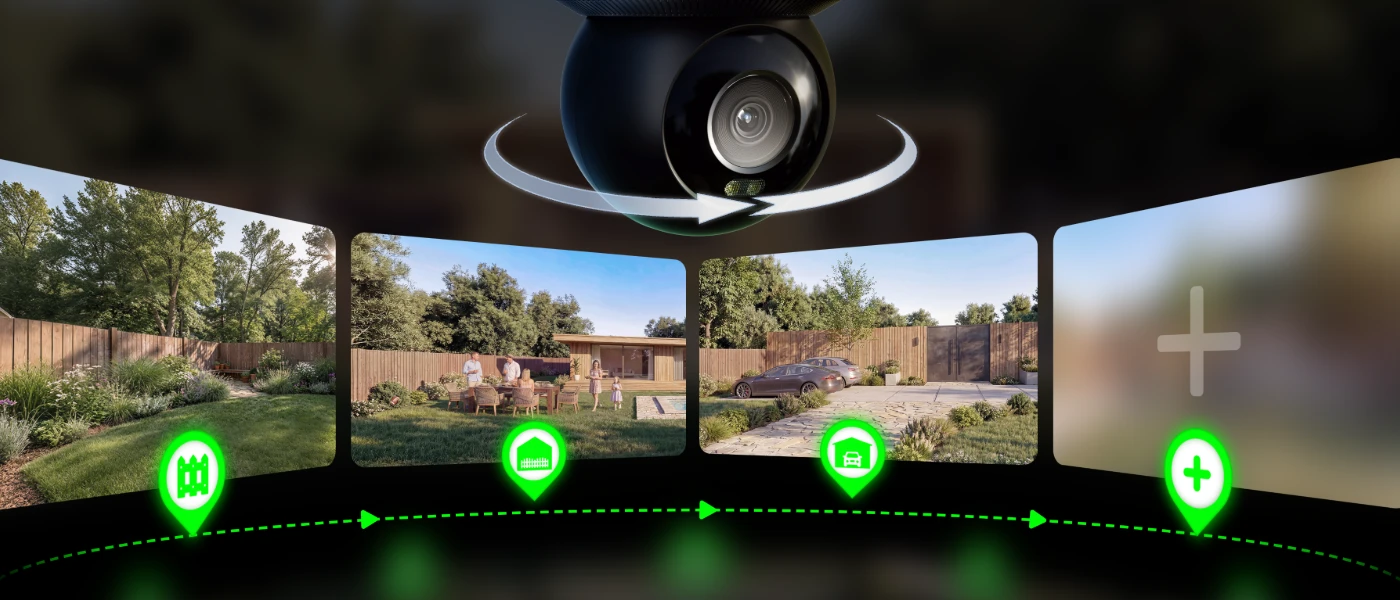
Cobertura total 4K de 360°
SyncTrack con encuadre automático y seguimiento automático
Almacenamiento local con disco duro de 2 TB integrado
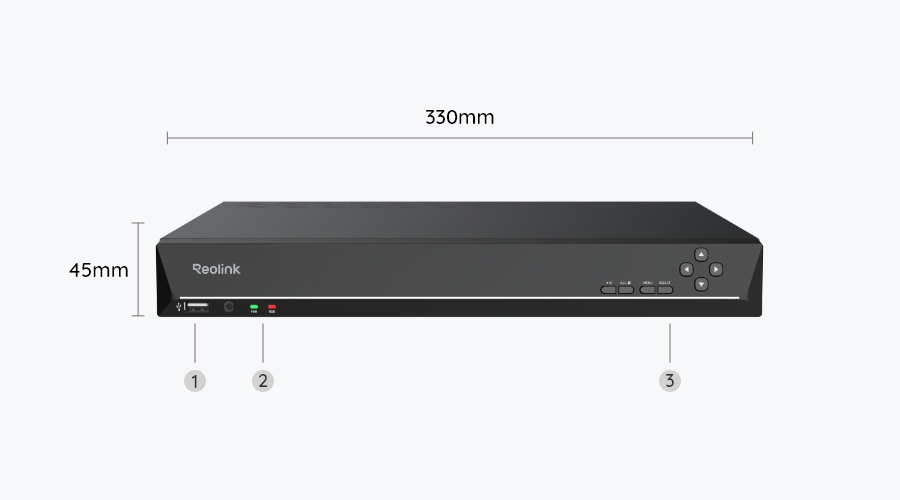
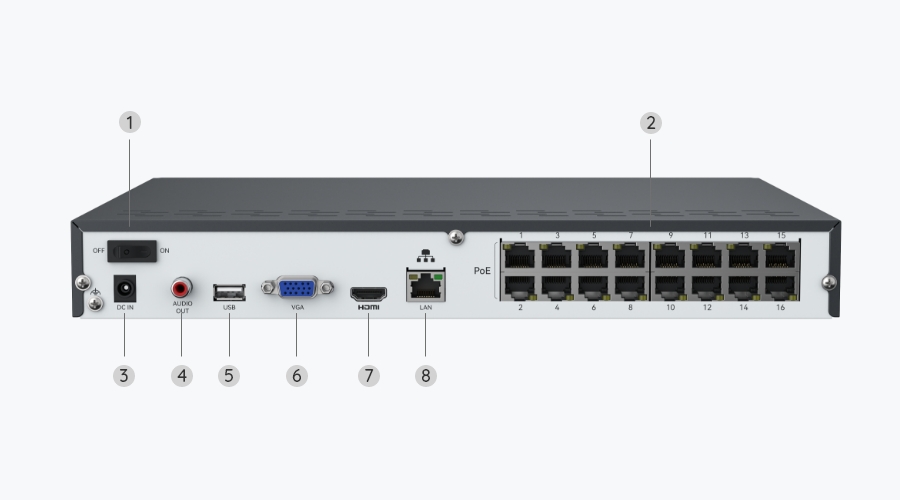
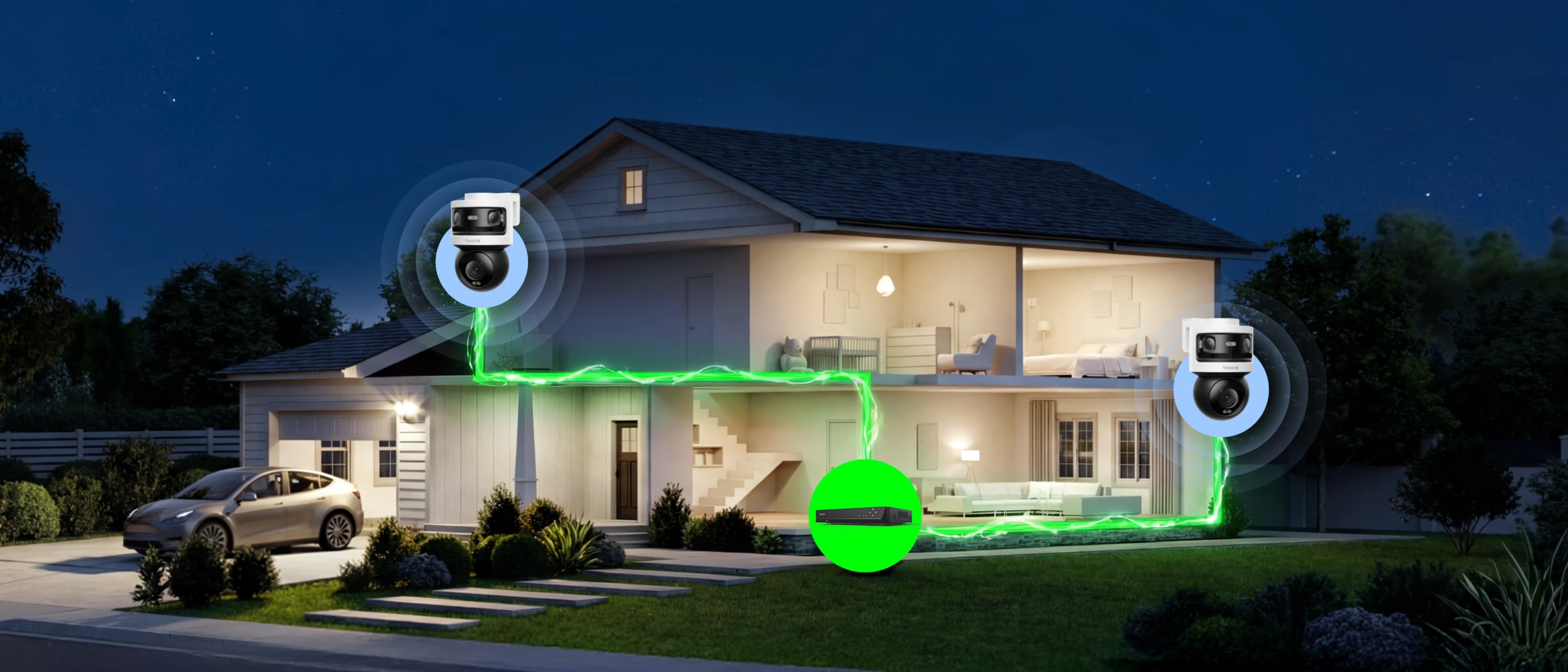
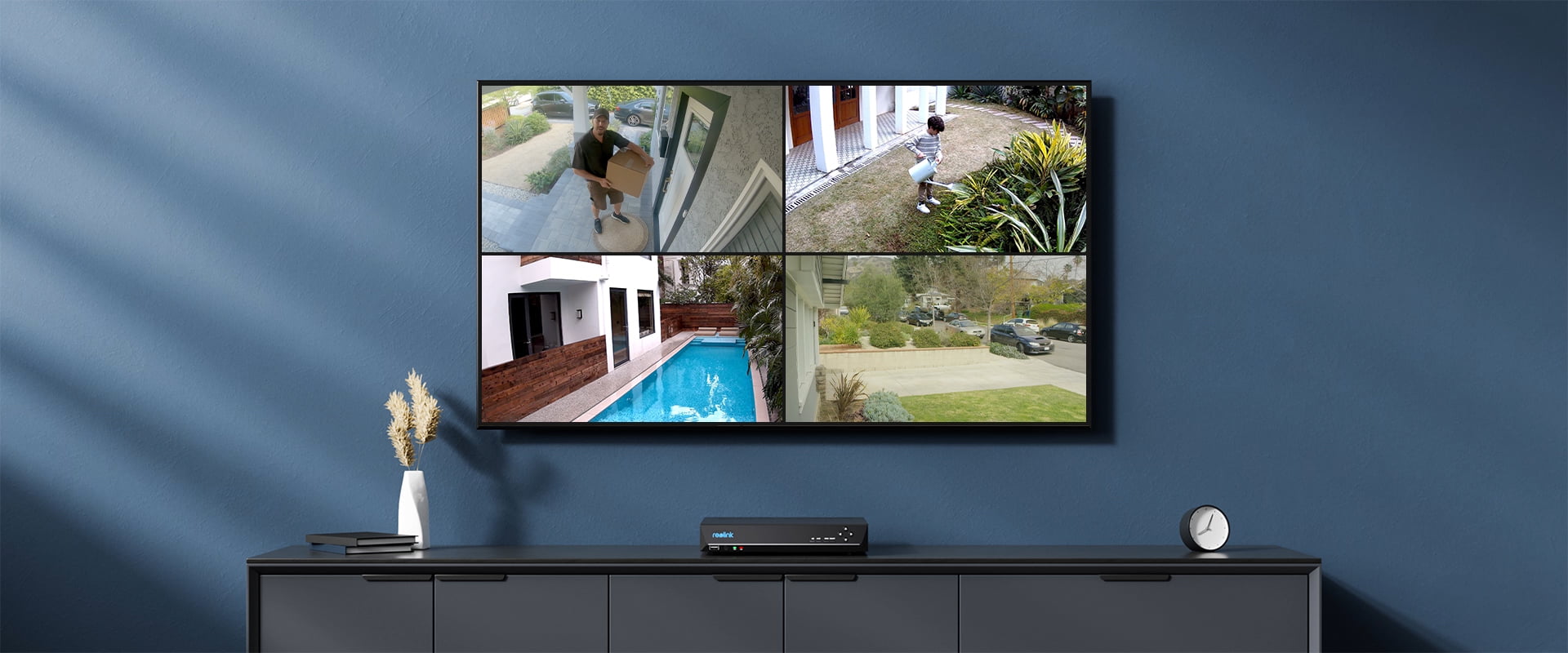
Disfruta de una protección completa y un control fluido con nuestro sistema centralizado en el NVR. Gestiona todas tus cámaras desde una única interfaz, adaptándose fácilmente a cualquier escenario de instalación. Tu seguridad, ahora más fácil que nunca.
Panorámica de 180° con encuadre automático
Una cámara hace el trabajo de dos
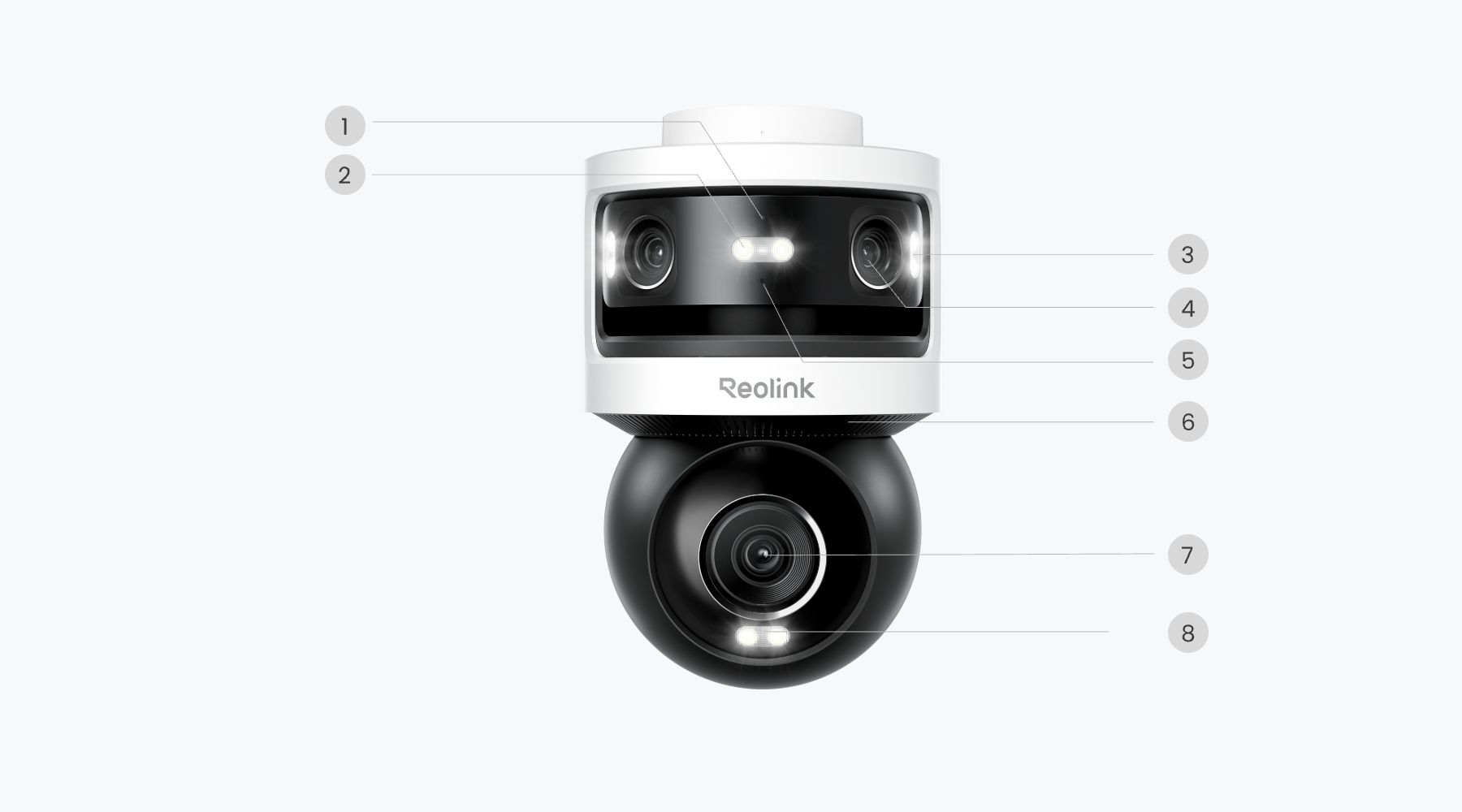
El sistema de triple lente de 18MP del OMVI 3i ofrece una amplia visión panorámica mientras sigue el movimiento en tiempo real. Observa la escena completa y amplía los detalles importantes, ambos visibles en pantalla al mismo tiempo.
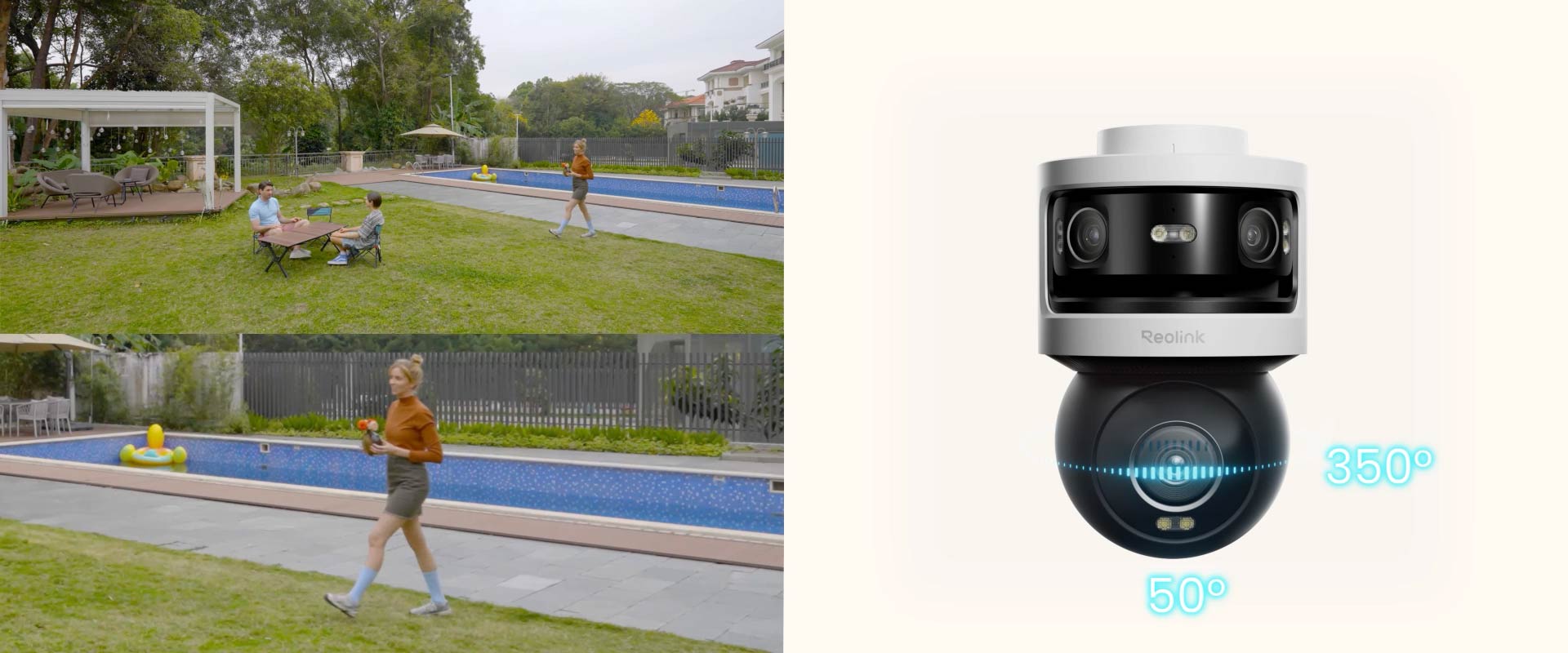
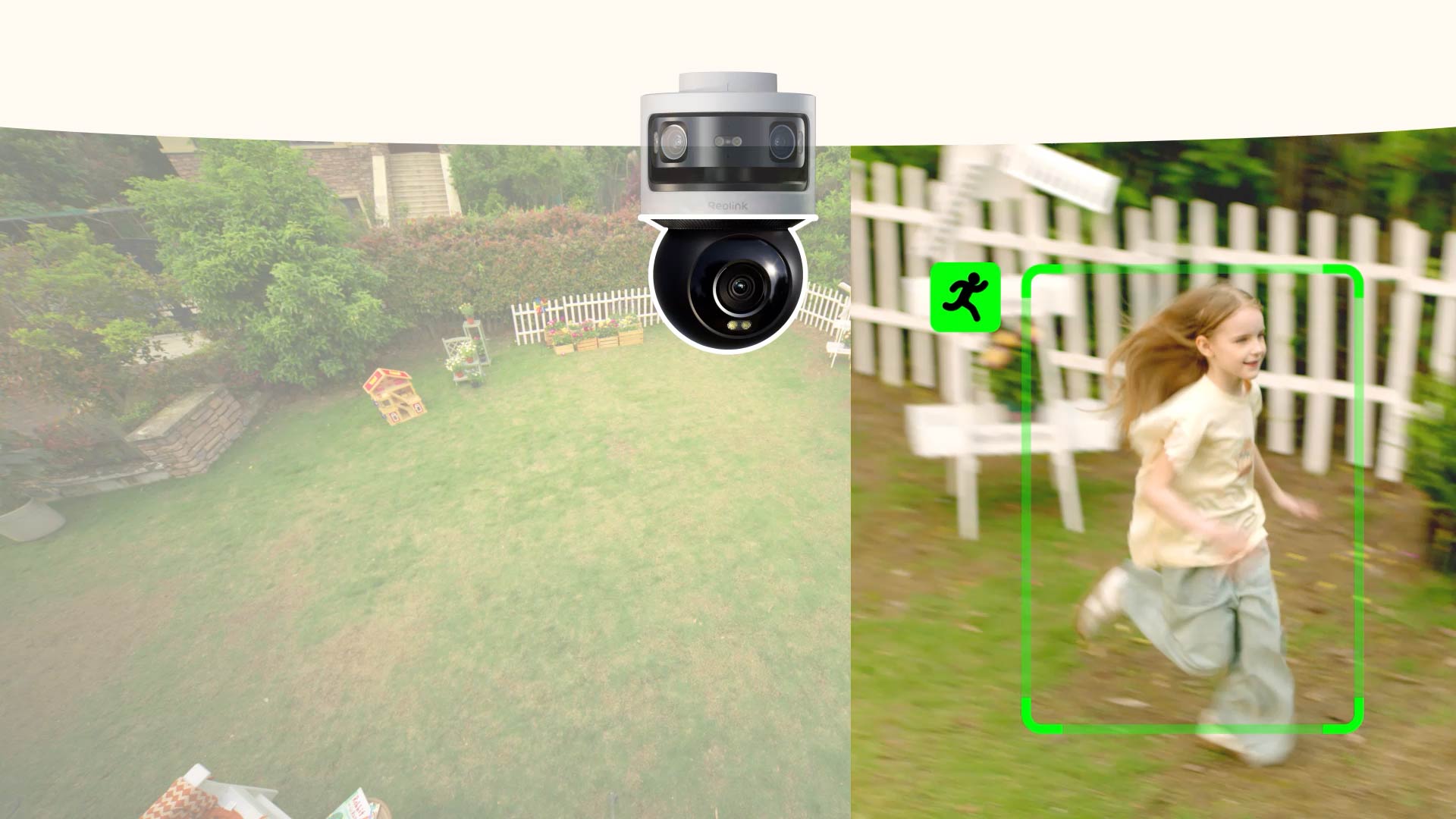
Cuando el encuadre automático está activado, la cámara PTZ del OMVI 3i PoE se fija en la persona u objeto y lo sigue si se mueve, manteniéndolo siempre centrado en la imagen. El seguimiento continúa incluso si la persona u objeto sale del campo de visión panorámico.
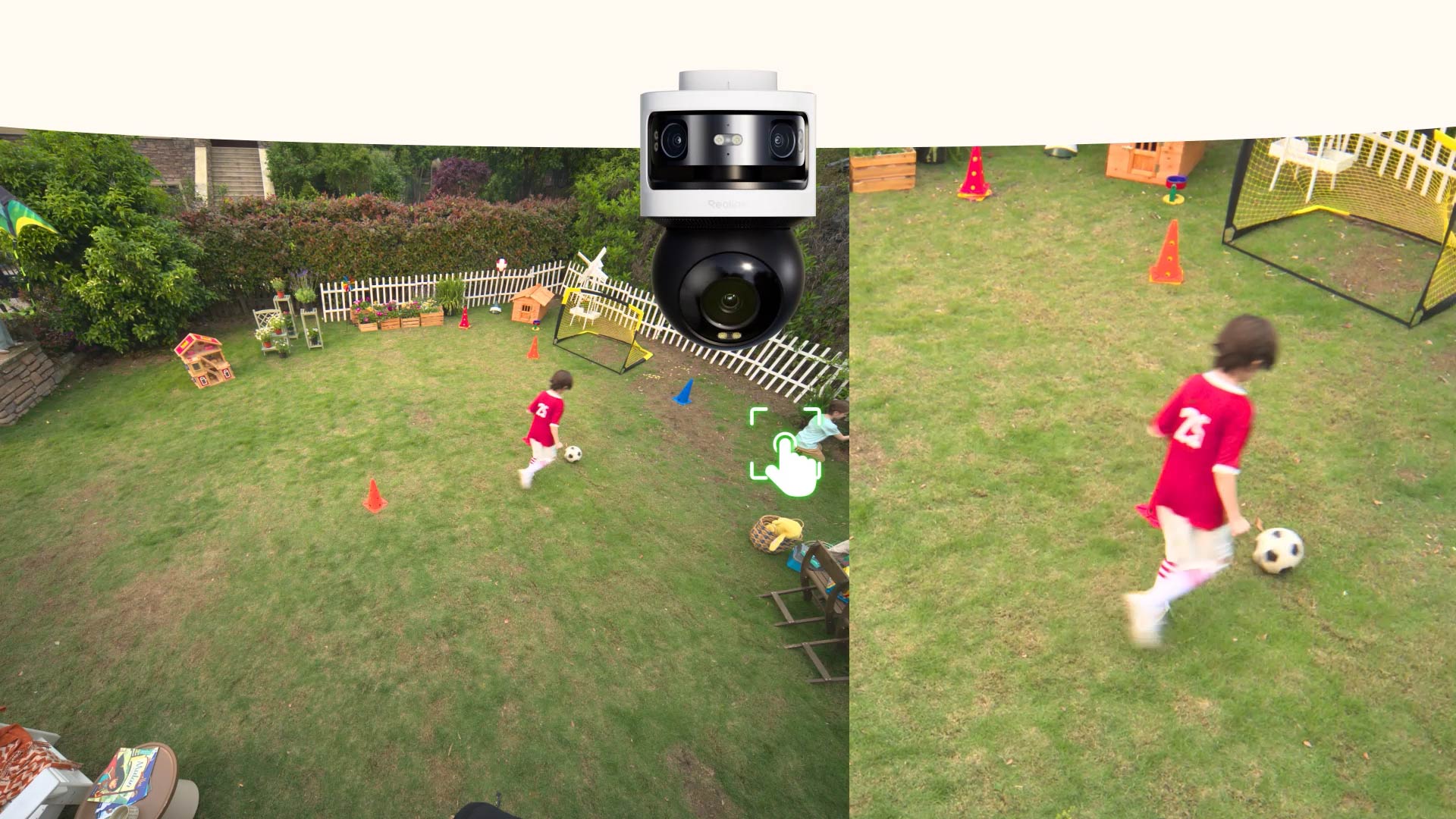
Gira y enfoca un área específica. Ideal para revisar rápidamente zonas clave como entradas de vehículos, patios y esquinas.
Detección local con IA
Reduce las falsas alarmas
La IA local funciona directamente en la cámara, sin necesidad de la nube. Distingue con precisión entre personas, vehículos, animales y el ruido de movimiento. Personaliza las zonas de detección, dibuja vallas virtuales y configura alertas de merodeo.
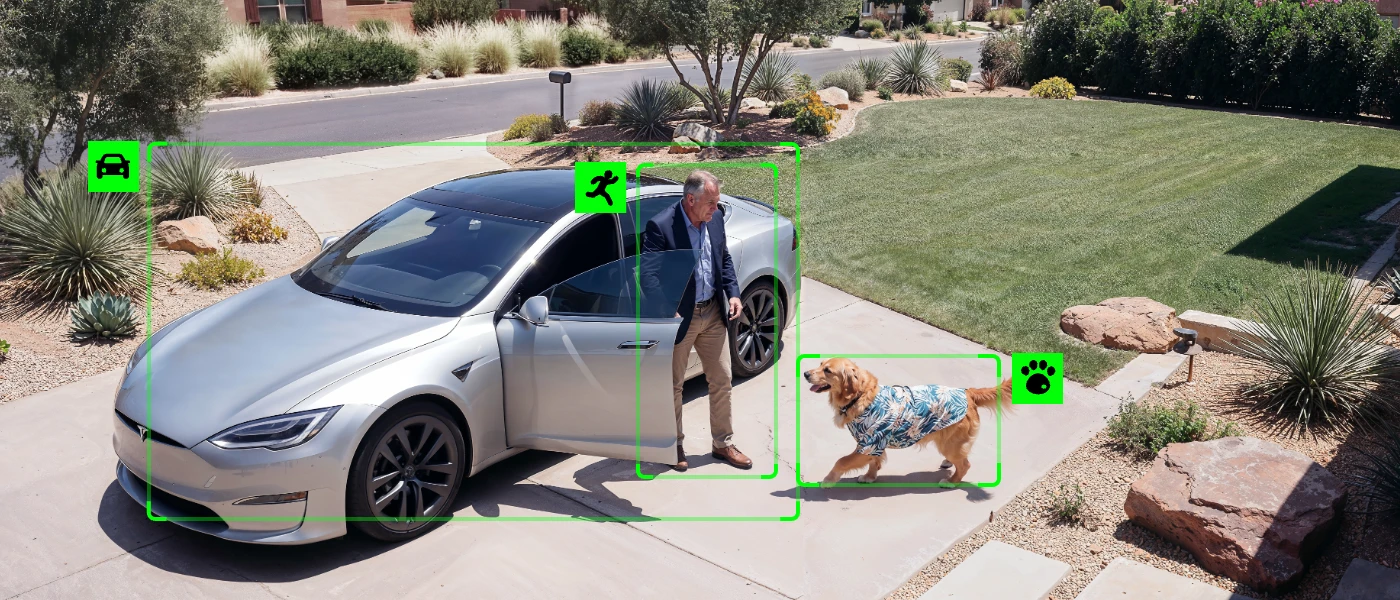
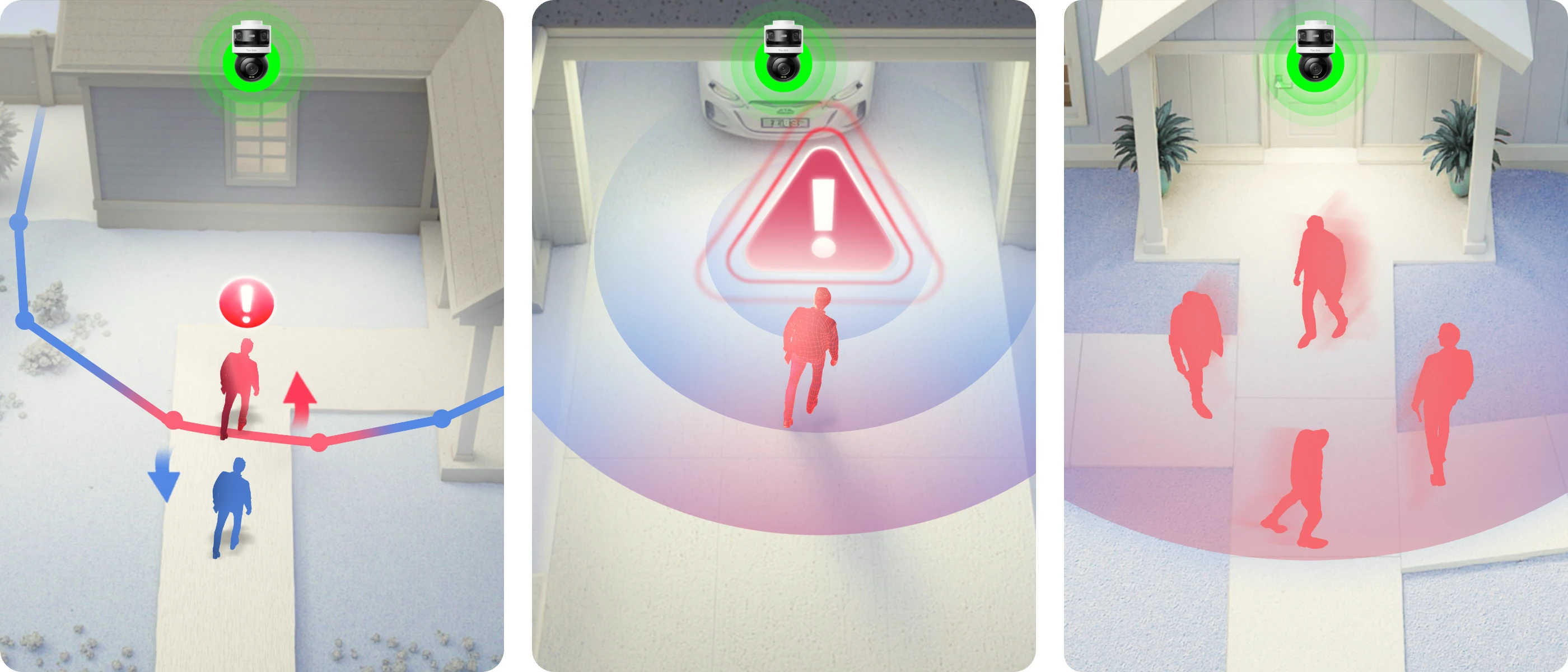
Este kit de cámaras inteligentes con focos ofrece grabaciones en todo color de día a noche. Mantiene tu familia protegida, aun después del atardecer
Con un disco duro de 2 TB preinstalado (ampliable hasta 16 TB), el sistema PoE puede guardar localmente días de grabación 24/7 procedentes de 2 cámaras. Actúa como guardia incluso sin conexión a internet, capturando cada momento sin fallos. Tus grabaciones están seguras con un amplio almacenamiento local, sin cuotas mensuales.
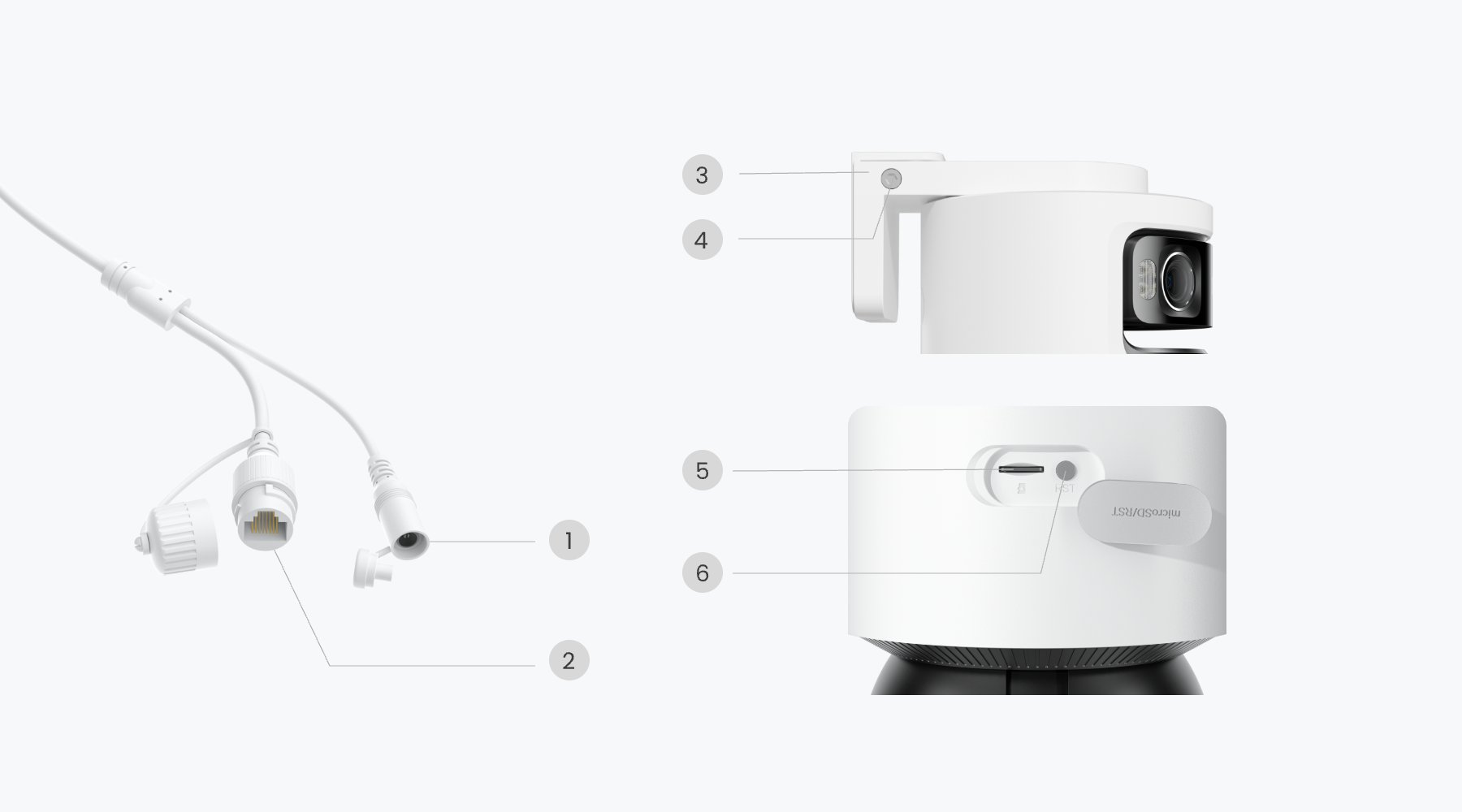
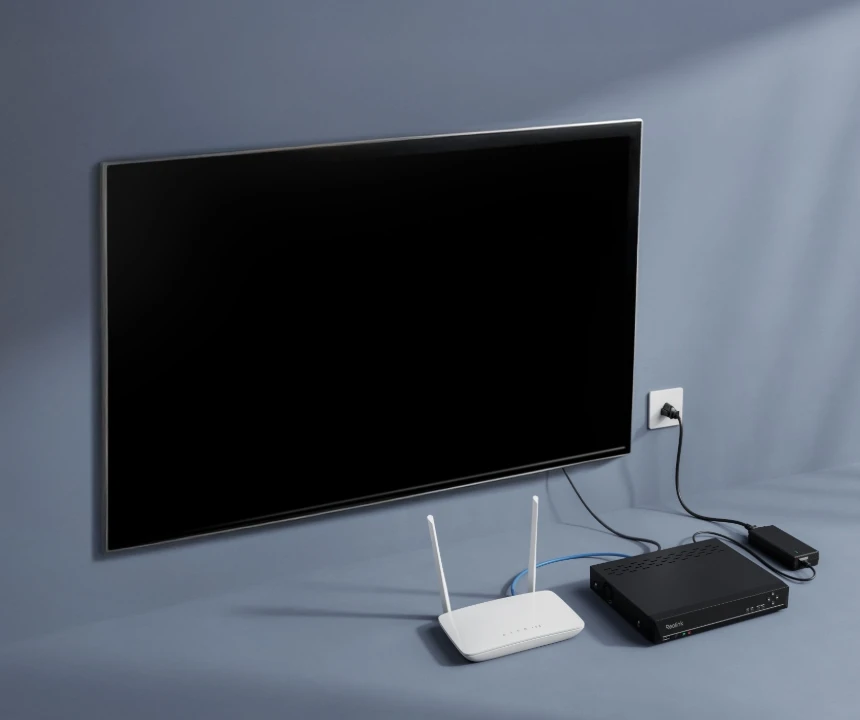
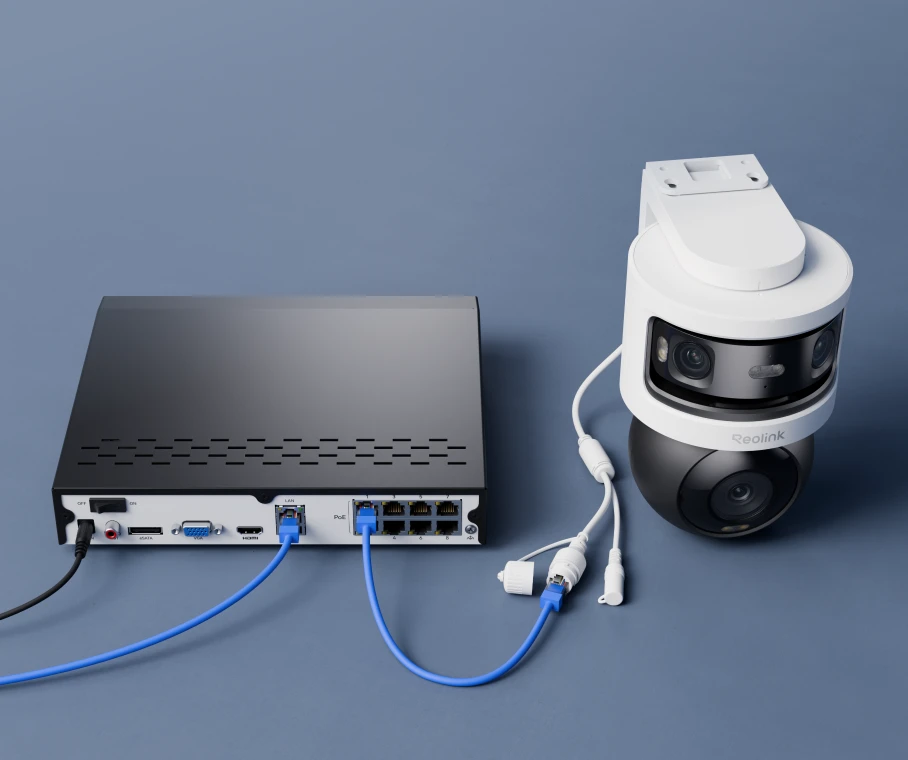
Sin necesidad de recargar baterías. Solo conecta el cable y empieza a usar el sistema.
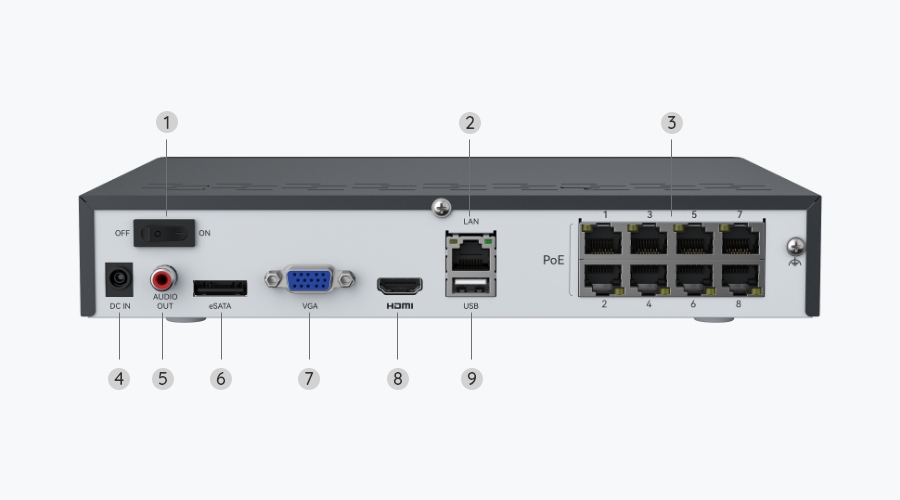
Conecta el NVR al router y a un monitor/TV, luego enchúfalo a la corriente y enciéndelo.
Conecta una cámara PoE al NVR mediante un cable Ethernet.
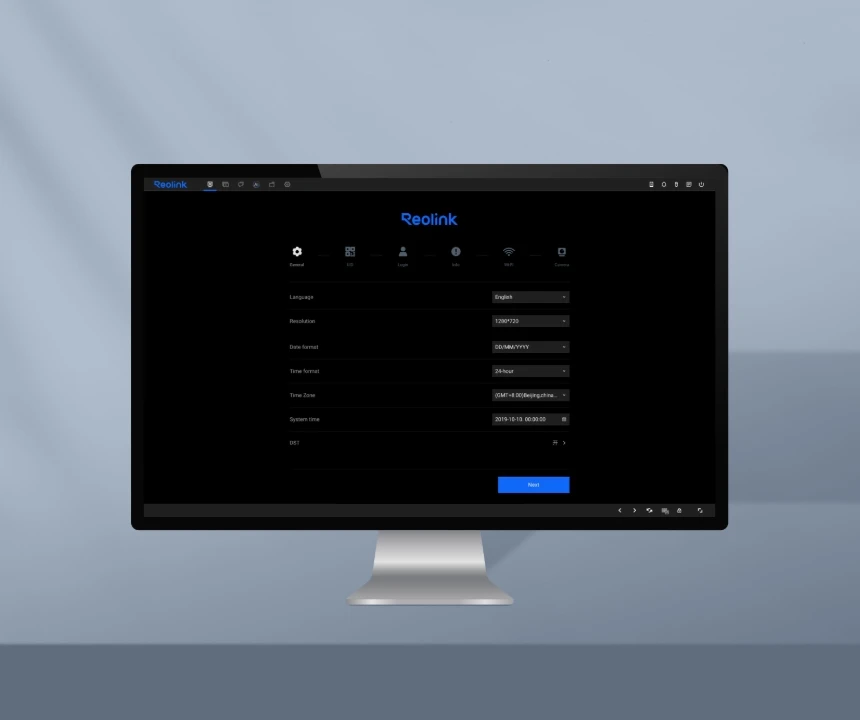
La primera vez que enciendas el NVR, sigue las instrucciones para completar la configuración básica.
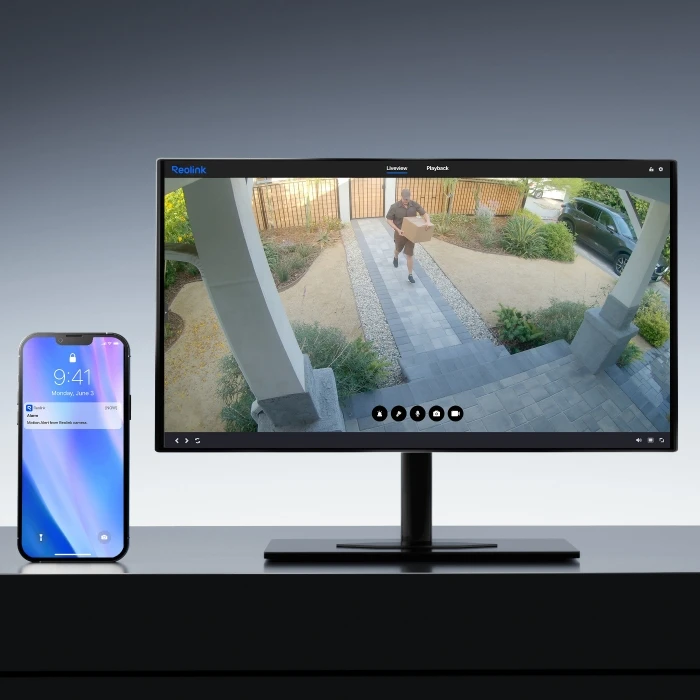
En cuanto se detecte algo sospechoso, las cámaras te enviarán al instante una notificación push o un correo electrónico. Mantente informado de lo que ocurre en todo momento.
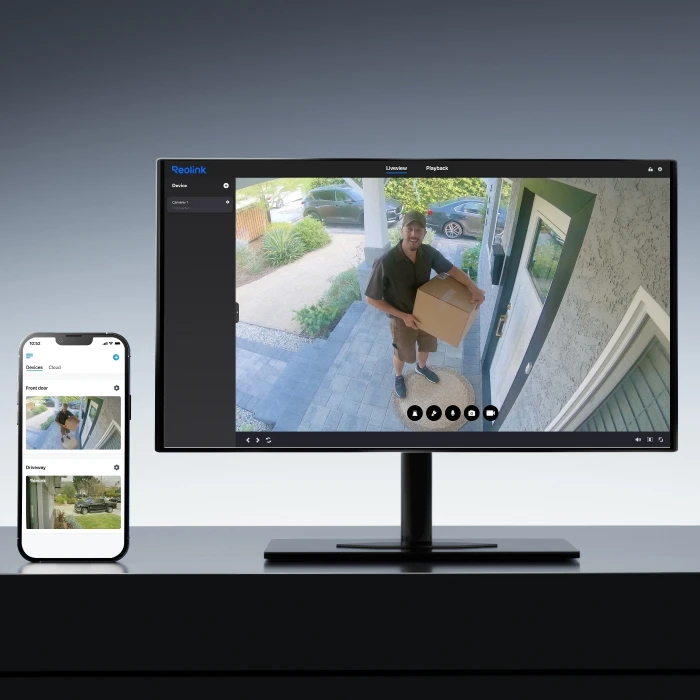
Controla varias cámaras en directo desde una sola pantalla y obtén una visión completa de tu propiedad.
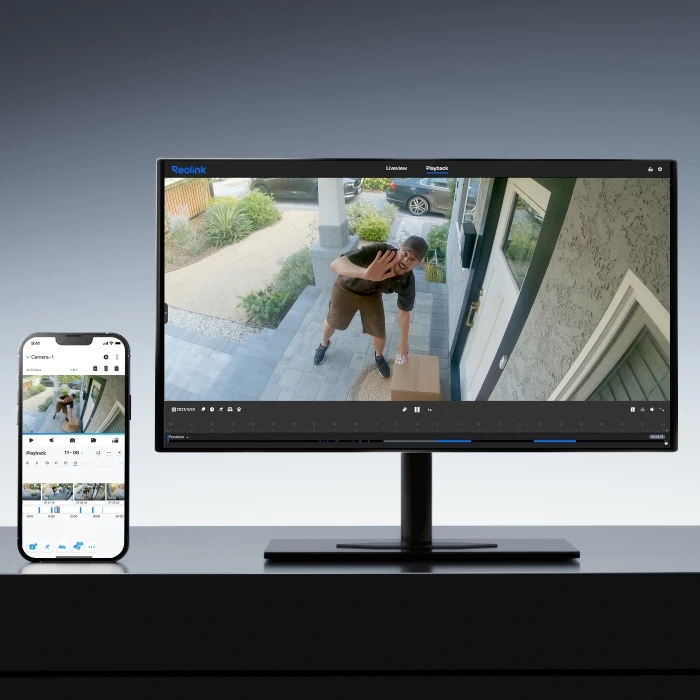
Puedes filtrar el vídeo por tipos de detección y controlar la línea de tiempo para localizar rápidamente lo que quieres ver.
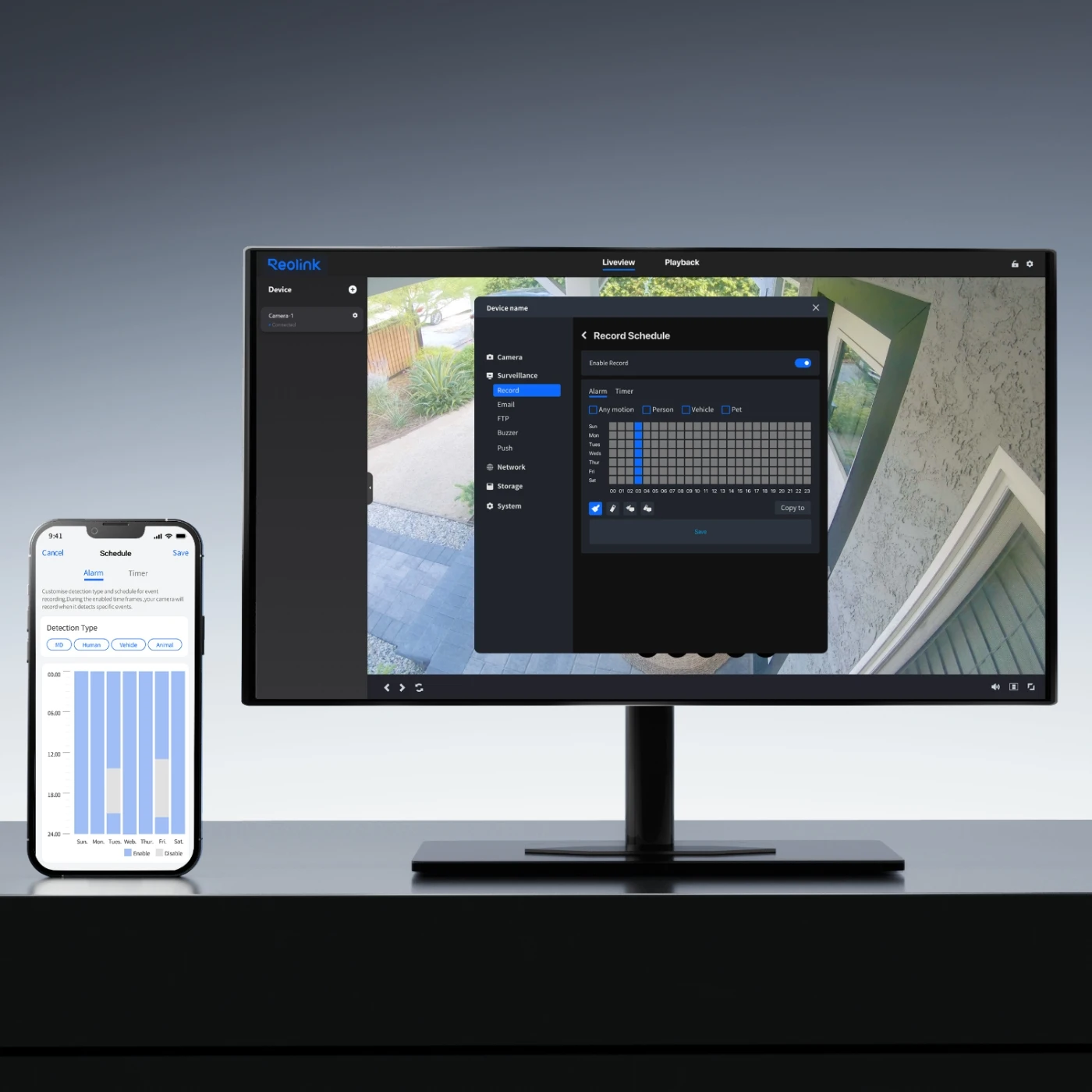
Puedes establecer un horario para que la cámara detecte y grabe.
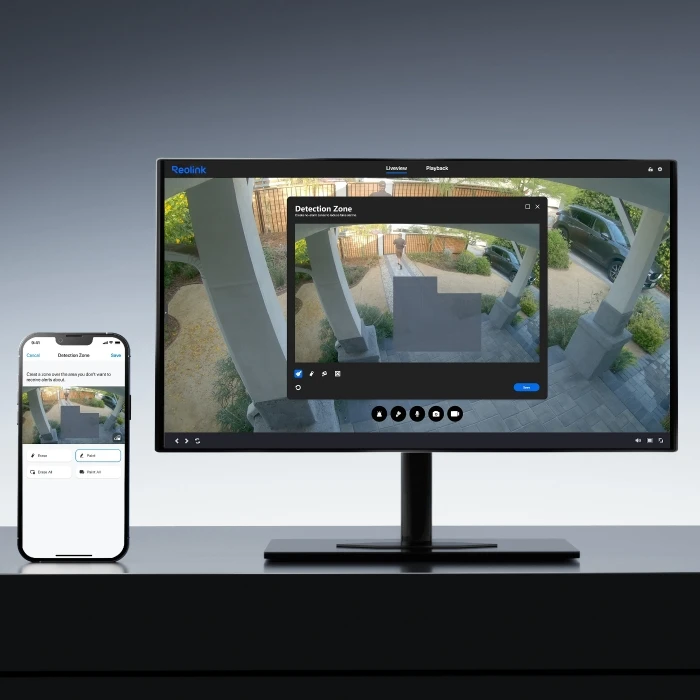
Puedes personalizar la zona de movimiento a tu gusto, donde se registrarán los movimientos.
Comprueba si la versión de hardware de tu NVR es compatible y si el firmware está actualizado.
✔ NVR compatibles (con firmware v3.6.5 o posterior)
RLN8-410/NVS8 (Versión de hardware: N7MB01 / NVR_NNT3NA78P)
RLN16-410/NVS16 (Versión de hardware: N6MB01 / NVR_NNT4NA716P)
RP-PN8 / RP-PN16
✔ NVR compatibles (con firmware v3.6.4 o posterior)
RLN12W / NVS12W
RLN36 / NVS36
Nota: La versión de firmware v3.6.4 hace referencia a cualquier versión cuyo número comience por v3.6.4, por ejemplo, v3.6.4.473_26021143.
https://reolink.com/download-center/
Para habilitar las vistas panorámica y PT, actualiza tu cliente de escritorio a la versión 8.21 o superior.
Para usuarios de Windows, actualiza a la versión 8.21 o superior a través del Centro de descargas de Reolink.
Para usuarios de Mac, ofrecemos versiones independientes para Apple Silicon e Intel, que se actualizarán por separado en adelante. Selecciona el paquete de descarga correspondiente a la arquitectura de tu Mac. La actualización inicial a la versión 8.21 debe descargarse manualmente desde el Centro de descargas de Reolink, mientras que las actualizaciones posteriores podrán instalarse directamente desde el Cliente de Mac.
Por favor, comprueba la compatibilidad del Encuadre Automático (Auto Framing) antes de usarlo.
Uso independiente (sin NVR): El Encuadre Automático solo es compatible con la aplicación Reolink v4.60 o posterior.
Con NVR: El Encuadre Automático es compatible con NVRs que tengan la versión de firmware v3.6.5 o posterior.
Cliente para PC: El Encuadre Automático no está disponible actualmente. Se espera que se añada la compatibilidsd para finales de agosto de 2026.
NVRs compatibles:
• RLN8-410/NVS8 (Versión de hardware: N7MB01/NVR_NNT3NA78P)
• RLN16-410/NVS16 (Versión de hardware: N6MB01/NVR_NNT4NA716P)
• RP-PN8/RP-PN16
NVRs actualmente no compatibles (se espera compatibilidad en agosto de 2026)
• RLN12W/NVS12W
• RLN36/NVS36
Cómo descargar el firmware más reciente para tu dispositivo Reolink ¿Cómo descargar el firmware más reciente para tu dispositivo Reolink?
Cómo descargar el firmware más reciente para tu dispositivo Reolink ¿Cómo averiguar la versión de hardware/firmware de la cámara a través del NVR de Reolink (Nueva interfaz)?
Cómo comprobar la versión de la app de Reolink ¿Cómo averiguar la versión de la aplicación Reolink?
Introducción al modo HyBridge del NVR Reolink Introducción al modo HyBridge del NVR de Reolink
Si encuentras otros problemas, consulta las preguntas frecuentes: FAQs - Reolink OMVI 3i PoE
Si el problema persiste, ponte en contacto con el equipo de soporte de Reolink: Envía una solicitud de soporte
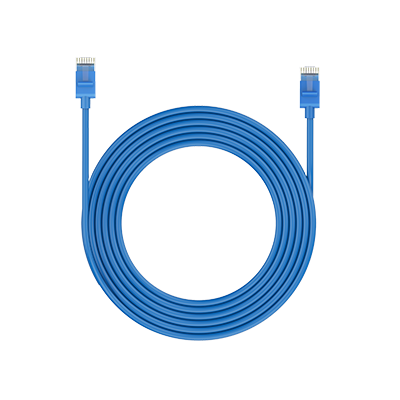 Cable de red de 1 m ×1
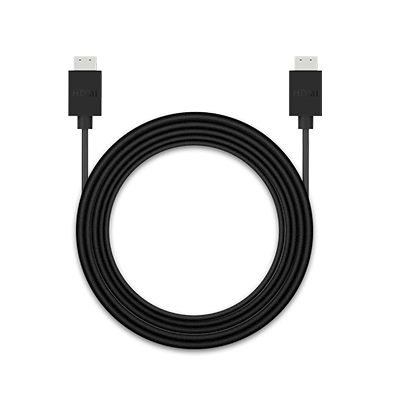 Cable HDMI ×1
 Adaptador de corriente para NVR ×1
 OMVI 3i PoE ×2
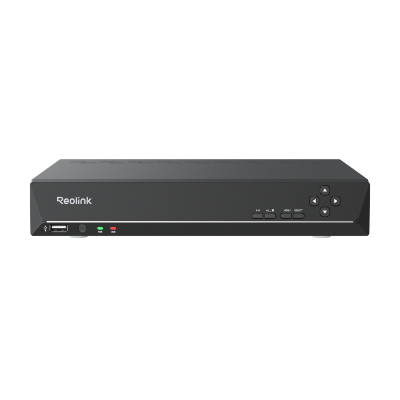 RLN8-410 ×1
 Ratón USB ×1



Be Prepared, Be Ahead
No pierdas las ofertas, noticias y actualizaciones exclusivas de Reolink para ti.
Be Prepared, Be Ahead
No pierdas las ofertas, noticias y actualizaciones exclusivas de Reolink para ti.

Google, Google Play, Google Assistant y las marcas y logotipos relacionados son marcas comerciales de Google LLC. Amazon, Alexa y todos los logotipos relacionados son marcas comerciales de Amazon.com, Inc. o sus afiliados. Mac y Safari son marcas registradas de Apple Inc. App Store es una marca de servicio de Apple Inc., registrada en EE. UU. y otros países. Firefox y el logotipo de Firefox son marcas registradas de Mozilla Foundation en EE. UU. y en otros países. Otros nombres de productos y empresas mencionados en este documento pueden ser marcas comerciales de sus respectivas compañías.